Gate to Heavens Classic
The original game, as it shipped. Follow the five steps below to run your own server and log in to it. The bonus steps are for when you want more.
Up to 12 xp here for members: 1 per step, and every step again when you finish. Sign in to keep it.
Step 1 · One zip, nothing to install
Download the server
This zip is your whole game world: the server program, the game's content, a database that builds itself, and GoMMO Manager, the window you run it all from. There is nothing else to install first.
- Download Gate to Heavens Classic v0.3.2 below. It is 482 MB.
- Unzip it into a folder of your own, such as
C:\Games\classicgth. - Not inside
Program Files: the server saves its database and logs beside itself, and Windows blocks that there.
Technical details
- Check the download: its SHA-256 is
9a388bf44714ecd6470c69544f9dd8cdac75ffc0f964e00ab484c82a6e9fe185. - On Linux, run
server/start-server.sh, orsudo sh server/linux/install.shto install it as a service.
Step 2 · Already in your zip
Get the game client
Good news: there is nothing to find. The client, the game program you play, is already in the zip you downloaded, in its client folder, and it is the exact build this server speaks to.
- Open the
clientfolder in what you unzipped and findlauncher.exe. That is what you will run in a moment.
Step 3 · Your server's on switch
Start it with GoMMO Manager
GoMMO Manager sits at the top of the folder you unzipped. It is the control panel for your server: it starts and stops it, shows you what it is doing, and sets it up the first time.
- Double-click
GoMMO_Manager.exe. - Press Start. If Windows asks about the firewall, allow it.
- The first time, Server Setup opens by itself. Create your owner account: that is you, the administrator.
- Watch the log. When it says the server is listening, your world is up.
Technical details
- Switch Auto on and the manager restarts a server that stops on its own.
- It backs up every database each day into
backups/, and updates the server when a new release is out. - The first start takes longest: the server builds its database and imports the game content.
Step 4 · Log in to your own world
Connect and play
Your server is running on your own computer. Now point the game at it and log in. Your computer is both the server and the player, so the address is 127.0.0.1, which means "this machine".
- Run
client\launcher.exe, notclient.exe. The launcher checks for updates and signs you in. - Type any email and password. On a fresh server the account is created the first time you sign in.
- Create a character in the launcher and press Play.
Technical details
- To let friends join, GoMMO Manager's Server Setup writes your public address into the client files, and Check Ports opens the firewall. Forward the same ports on your router.
Bonus · Bonus quest · when you want to change things
Make it yours with GoMMO Studio
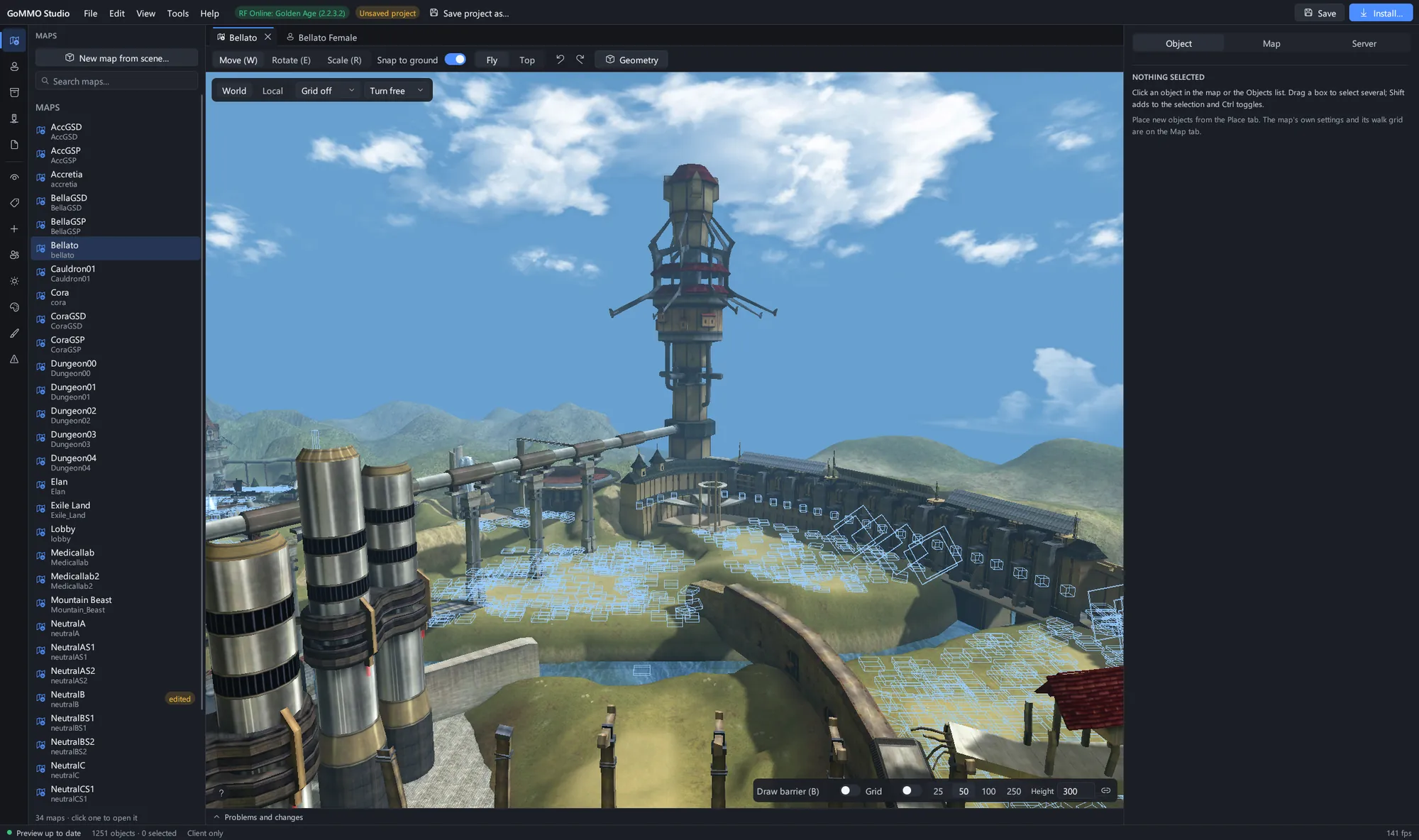
Bring Studio in once your server runs and you want to change it. It opens your game client and your server folder side by side: maps, monster spawns, NPCs, models, textures and game data, then one Install writes the files and keeps backups.
- Download GoMMO Studio and unzip it anywhere.
- Open your game client folder in it, and link your server folder as the project.
- Change something small first, such as one monster spawn. Press Install, restart the server in GoMMO Manager, and go and look.
Step 6 · Where to ask, report and follow
Join the community
Every server here is built in the open, and the people running them are the best help you will find. Ask when you are stuck, report what breaks, and follow the game so you hear about each new version.
- Something broke? Report a bug with what you did, what happened and a screenshot. Fixes land for everybody.
- Stuck on a step? Ask on Discord or the forum. Say which game and which step.
- A notification the day Gate to Heavens Classic ships a new version
- Reporting a bug, and hearing when it is fixed
- Posting on the forum and in chat
- This guide's progress on every device
All steps done
You run your own Gate to Heavens Classic server.
That is the whole loop: server, manager, client, community. Where next?